You've just realised that a file has been overwritten with bad data! Luckily you have R1Soft installed on your server, so you can easily restore files by following these steps:
1. Log into the backup server with your username and password.
2. Select Protected Machines.
3. Click the cog icon on the right and then select Open Recovery Points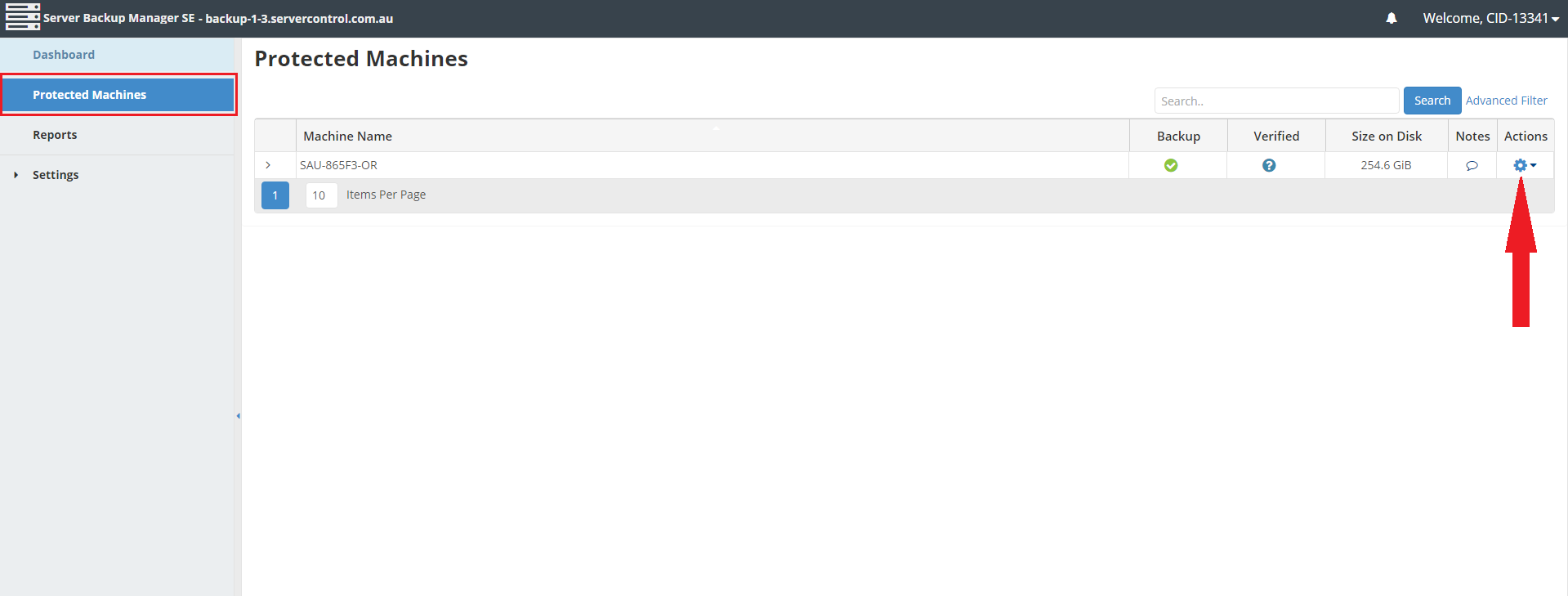
4. Select the cog icon next to the Created On date you wish to restore from and select Browse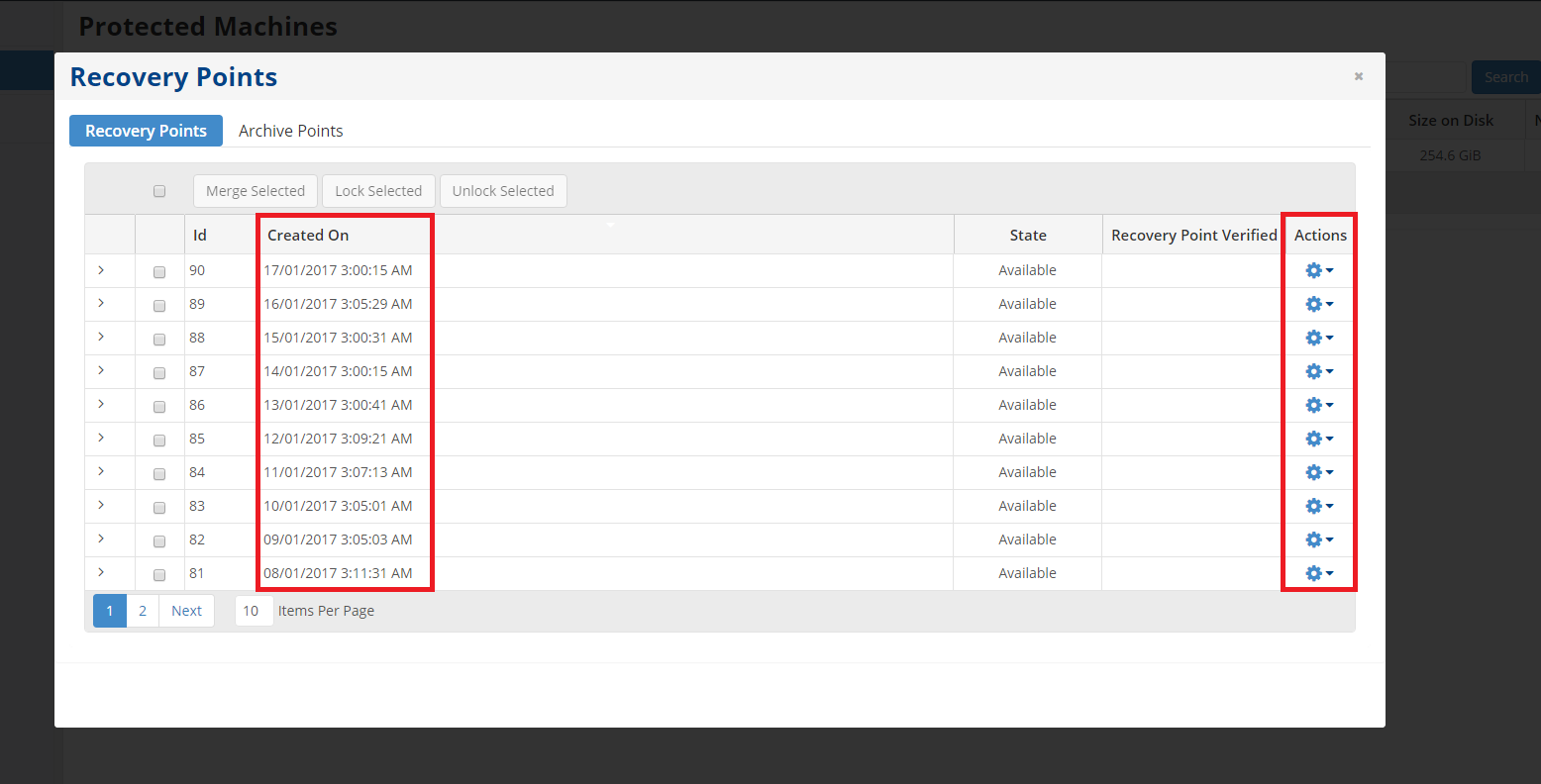
You can either put the directory path in the location box, or you can manually browse by double-clicking the folders until you get to the directory you want.
5. Place a tick in the box next to the folder you wish to restore and click Restore Selected, this is the curved arrow icon next to the download icon.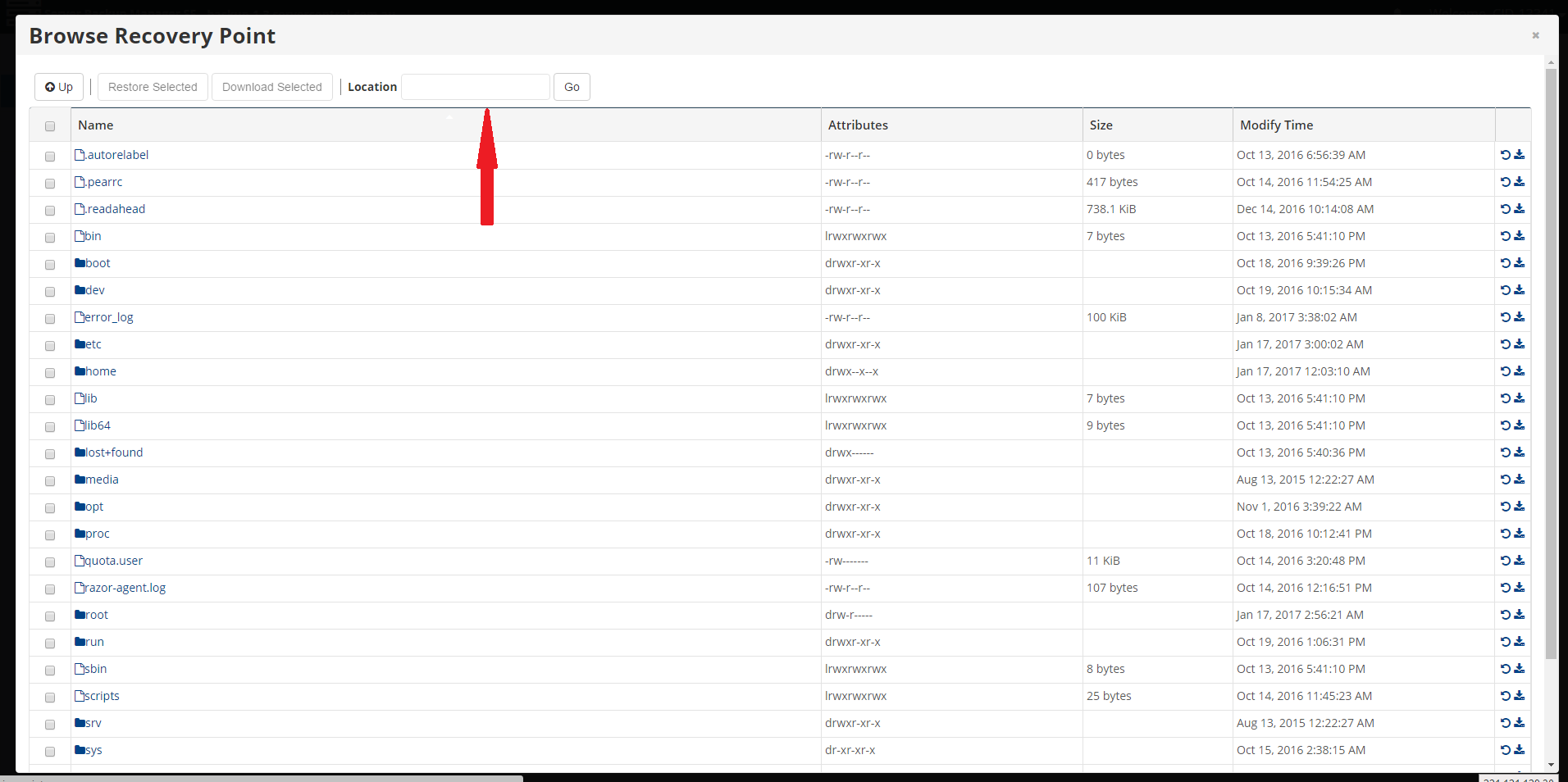
6. To overwrite all files at the destination, select the Overwrite Existing Files option. You can also choose to restore the files elsewhere on the server with the Alternate Location box.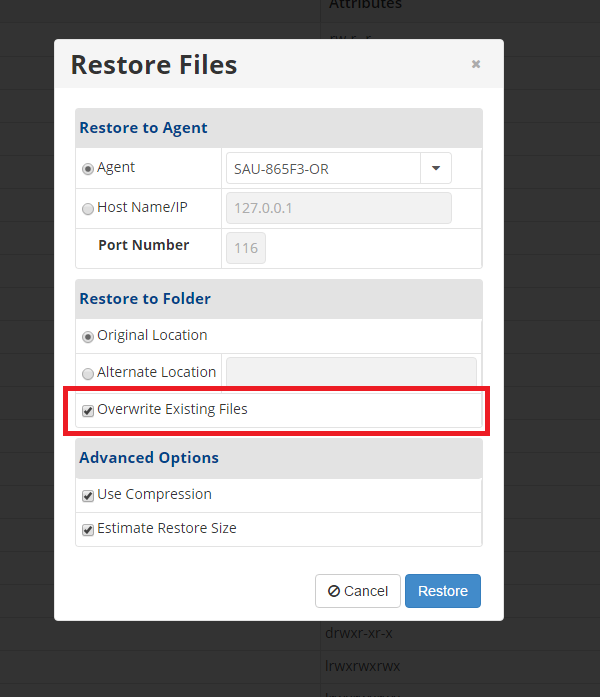
7. Click Restore
That's it! You've now queued a restore job on the backup server.