How to Increase the Disk Size of a VM in vCloud Director
VMware vCloud Director is a leading cloud service-delivery platform used by some of the world’s most popular cloud providers. It’s also a powerful tool for managing virtual environments, including the ability to increase the CPU or RAM allocation of a virtual machine (VM). Here’s a step-by-step guide on how to do it:
Storage Requirement for RAM allocation/increases
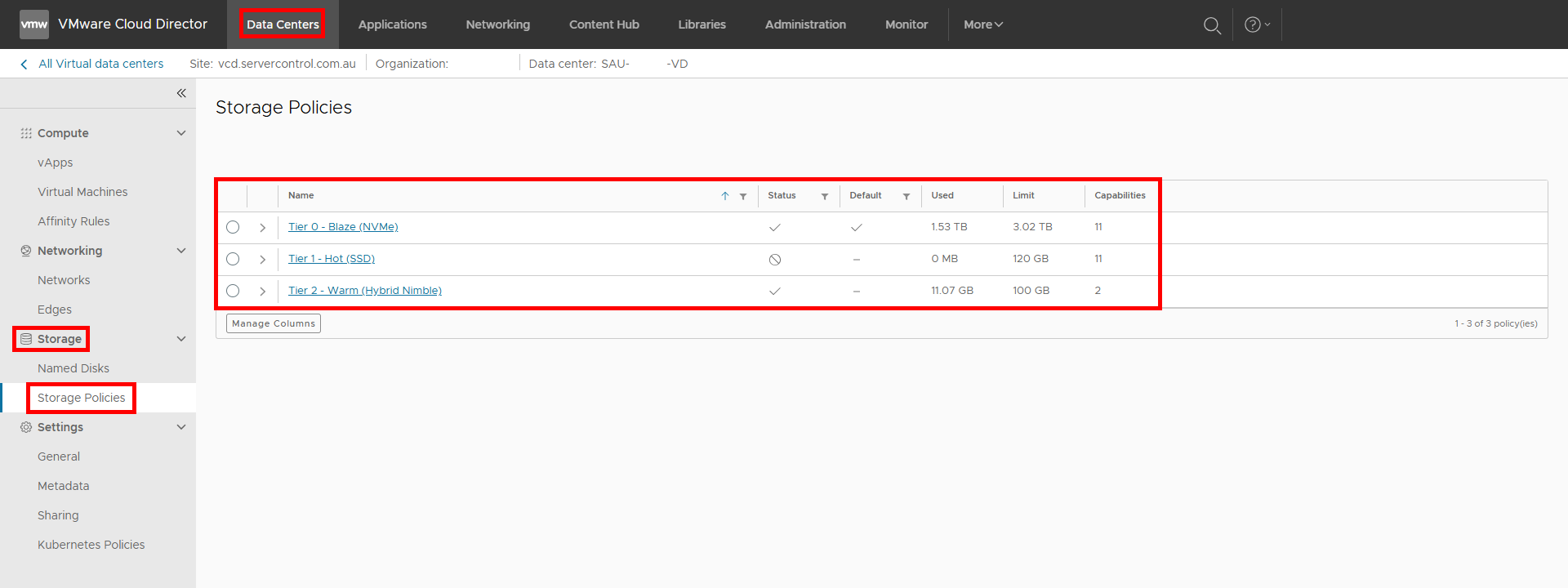
As explained within VDC - General Information under Storage Utilisation, for any given amount of RAM allocated to a VM, the system will need to create an equivalently sized SWAP file. This is done using the storage within your Storage Policy. If you are planning to increase your RAM on a VM by 4 GBs, you will need at least 4 GBs of Storage free to do so. You can check your current free storage under Data Centers → Storage → Storage Policies:
Unlike Storage increases, RAM increases are reversible, and will relinquish the SWAP File upon powering down.
Step 1: Select the VM
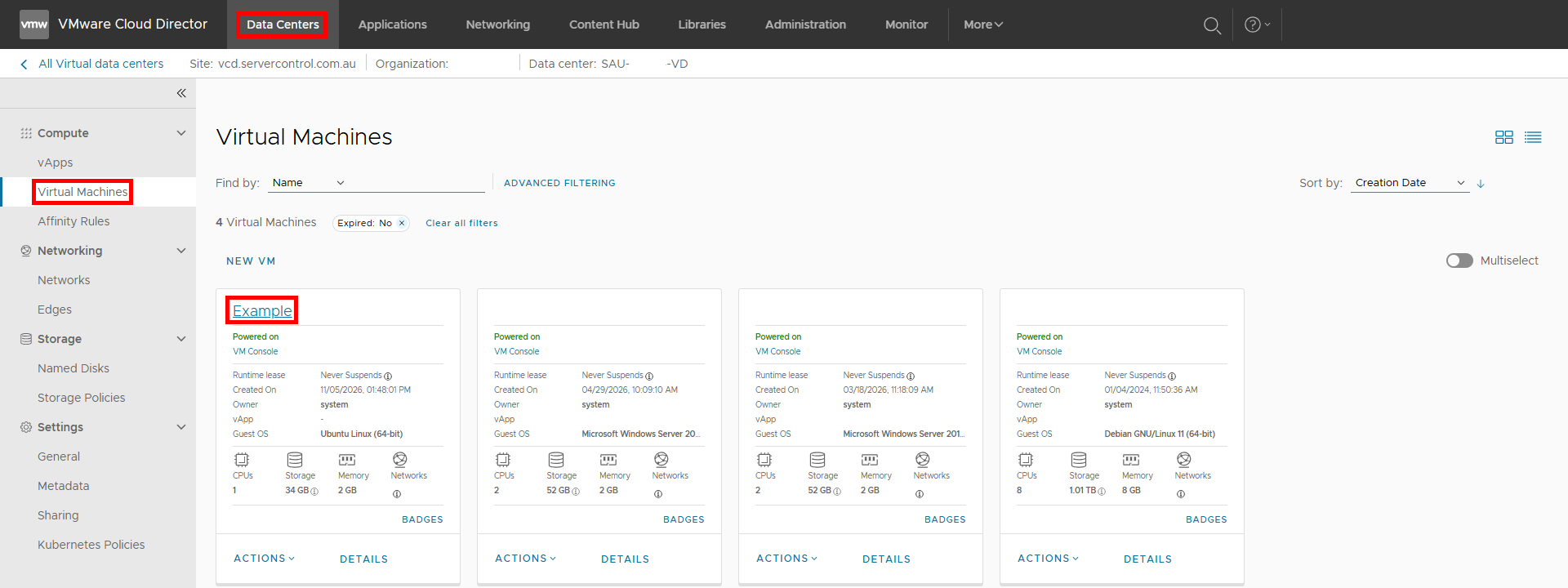
Find the VM whose resources you want to increase in the list of virtual machines. Click on its name to open its properties.
Step 2: Entering the configuration section
Within Hardware → Compute click on Edit:
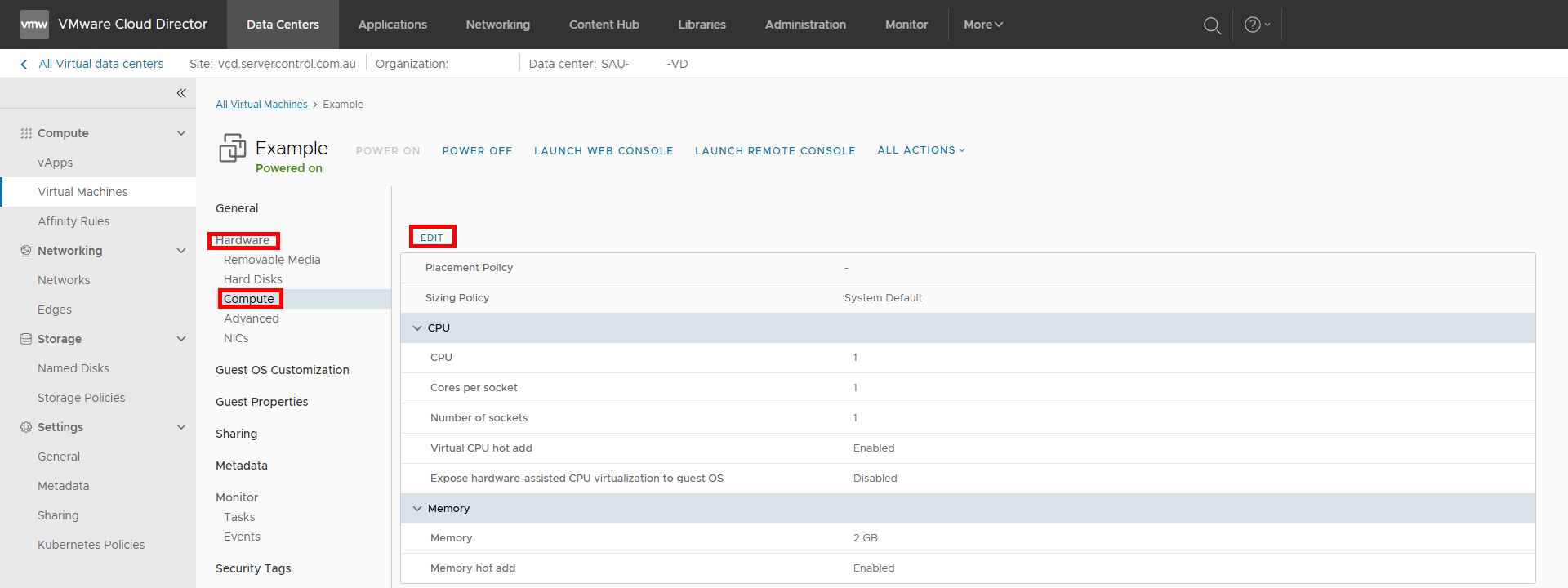
This will bring up the configuration section where you can change these values.
Step 3: Increase/Alter the CPU and RAM allocation
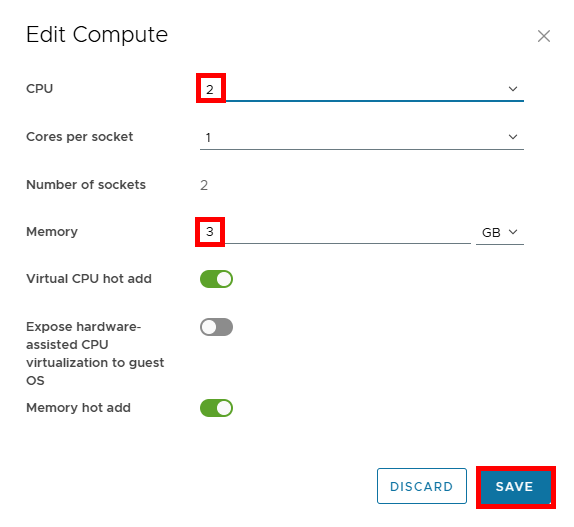
Within Edit Compute, you can change the configured values for CPU and Memory (RAM), before clicking Save:
Step 4: Reboot the VM
Hot Add Enabled
If Virtual CPU hot add and Memory hot add were enabled, this step does not need to happen for vCPU or RAM increases. Please be aware that enabling these settings has a performance penalty, which increases with larger vCPU and RAM allocations in place.
Please note that removing vCPUs and RAM will always require a reboot as they cannot be hot-removed.
To reboot the VM, this can be done via All Actions → Power → Power Off and then All Actions → Power → Power On:
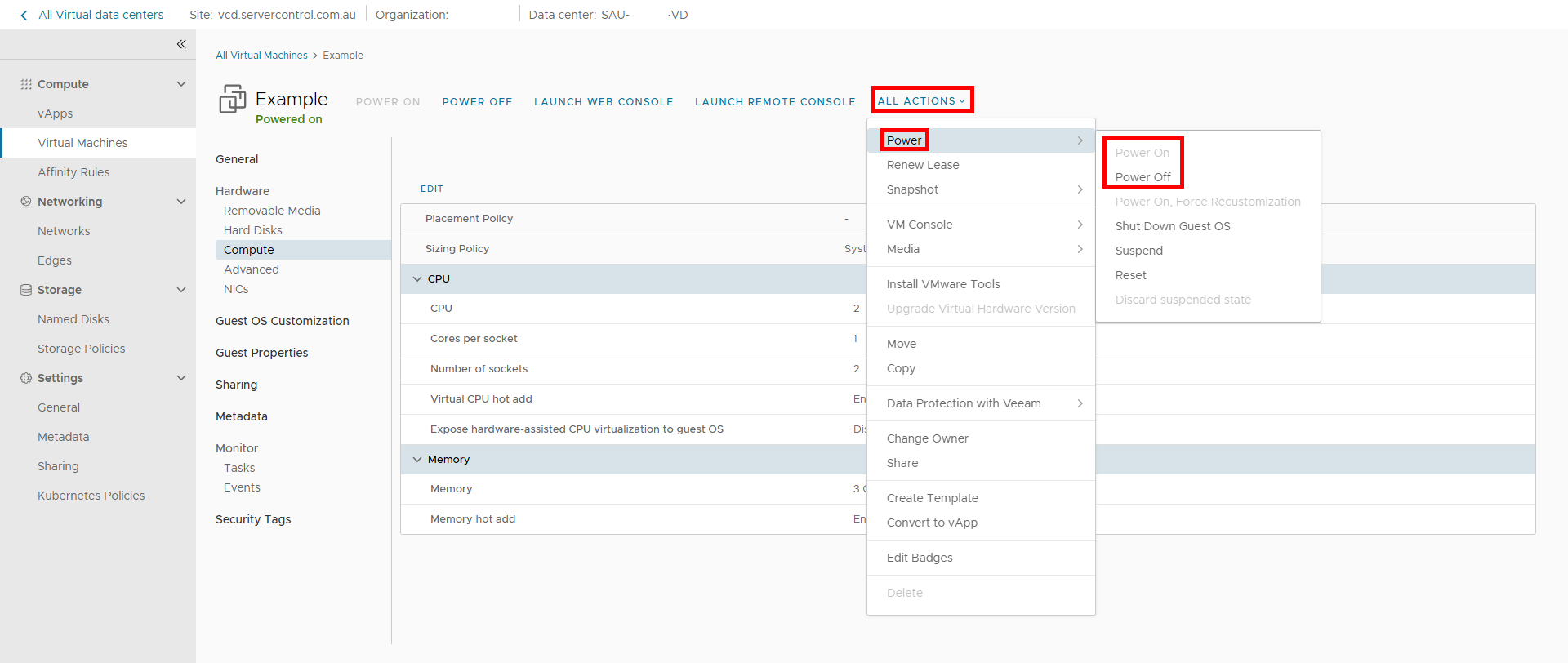
And that’s it! You’ve successfully increased the CPU and/or RAM of a VM in vCloud Director, and rebooted the server for it to take affect.
If you have any other questions or need further assistance, please raise a case in the MySAU Portal or call us on +61 2 8115 8888, 24 hours a day, 7 days a week, and our support desk will happily help you out.