Sometimes your WordPress website may not load correctly and may just display a white page. When this happens, the next step to figuring out the problem is to enable Debug mode for WordPress.
Debug mode will output all PHP errors to your browser or to a log file, including missing module errors, syntax errors, and information about deprecated functions.
Please note: It is not recommended to use WP_DEBUG or the other debug tools on live sites; they are meant for local testing and staging installs.
Enable Debug mode
In the below example, we will be using “nano” via SSH to edit the file.
This can also be completed via cPanel by going to the File Manager and to your WordPress installation directory, then editing the wp-config.php file in the text editor.
1. Open your website's wp-config.php file in a text editor. To launch nano text editor, use the below command:
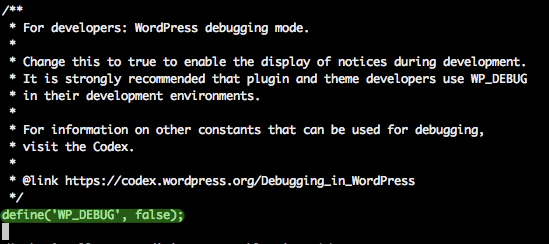
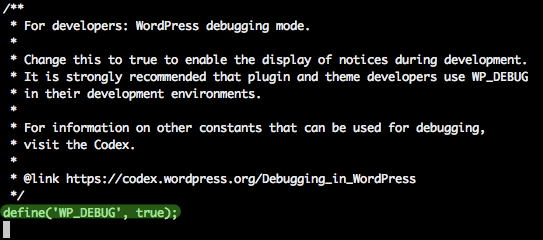
nano /path/to/website/wp-config.php2. Find the line that says define('WP_DEBUG', false); and change it to define('WP_DEBUG', true).
Note: The true and false values in the example are not surrounded by apostrophes (') because they are boolean (true/false) values. If you set constants to 'false', they will be interpreted as true because the quotes make it a string rather than a boolean.
Below is an example of this before being actioned:
Below is an example of this after being actioned:
3. Save the file.
Debug mode should now be enabled. To disable debug mode, revert your changes in the wp-config.php file.